
Buttons Block
Use the Buttons block to highlight links to pages, documents, and other important information. The Buttons can also be used as an effective call to action to site visitors. The block is formatted in a three-column layout.
Best Practices
- Keep text concise (2 lines maximum)
- Double-click on the button to edit the text
Settings
Button Block
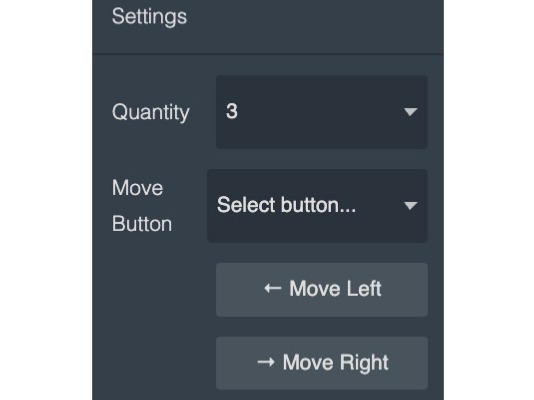
- Quantity: 1 to 9 buttons per block
- Move Button: Reorder a button in the block
This Button block has multiple elements. Be sure to select the element you want to apply settings to. Selected elements are indicated by the blue outline.
Button
- Title: optional title for the button
- URL: link for the button
- Target: load new page in current window/tab or new window/tab
This caption describes the image above.
Reordering Buttons
In the Settings panel you can use the Move Button function to change the order of the buttons in a Buttons block.
- Select the Buttons block.
- In the Setting panel use the dropdown to select the button you want to move. The dropdown will show the title of the button in the Buttons block.
- Use the Move Left or Move Right buttons to change the position of the selected button in the Buttons block.

Buttons block settings

Individual button settings
updated March 23, 2026