
Tabs Block
The Tabs block can be used to reduce the number of subpages in a section and also organize related content on a page. This block can be customized with up to five tabs per component. The tabs are designed to only contain text (no images, video, buttons, etc.). Double-click on the tab heading or tab body to edit the text.
Best Practices
- Shorter text lengths per tab are more effective.
- Be sure that formatting is consistent.
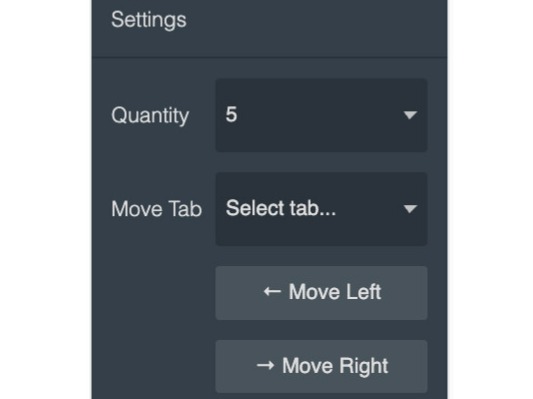
Settings
- Quantity: Number of tabs in the block between 2-5 tabs
- Move Tab: Reorder a tab in the block
This caption describes the image above.
Reordering Tabs
In the Settings panel you can use the Move Tab function to change the order of the tabs in a Tabs block.
- Select the Tabs block.
- In the Setting panel use the dropdown to select the tab you want to move. The dropdown will show the title of the tab in the Tabs block.
- Use the Move Left or Move Right buttons to change the position of the selected tab in the Tabs block.
Tab Option 1. Add body text in this space.
Tab Option 2. Add body text in this space.
Tab Option 3. Add body text in this space.
Tab Option 4. Add body text in this space.
Tab Option 5. Add body text in this space.

This caption describes the image above.
updated March 23, 2026