
Using PDFs
Adding a PDF
To add a PDF link, first highlight the word or phrase in the text block that you want to link and select the hyperlink icon from the text editor.

This caption describes the image above.
The link setting popup will appear. Go to the tab titled “Upload”, choose your PDF file from your computer, and select “Send it to the Server”. The file will then be stored on the server where you'll be able to choose or replace the PDF file as needed.

This caption describes the image above.
After clicking "Send it to the Server," the popup will switch to the Link Info tab with the link to the uploaded PDF autofilled in the URL field. The link URL will follow this pattern:
https://minio.la.utexas.edu/webeditor-files/[unit]/pdf/[file name].pdf
Click OK to save the link.

This caption describes the image above.
Linking a PDF to a Button
At this time, there is not a direct process for uploading a PDF and linking to it from a button. In order to link to a PDF from a button, you'll need to follow the above procedure by creating a temporary link in a text block and then copying the URL from the Link Info tab. You can then paste the URL in the button's URL field and delete the temporary link. Alternatively you can upload the file to Box and link to it from a button following the below steps.
Linking to PDF files saved in Box
The PDF upload tool has a maximum file size of 512 Kb. If you need to link to a larger PDF you'll have to save and share the file using a service like Box.
This caption describes the image above.
Edit Existing PDF
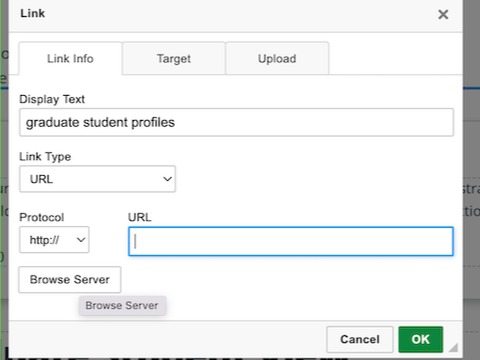
To access a PDF file that is already uploaded, click on a link to edit it. In the the Link Info tab of the Link popup click the "Browse Server" button.
A popup window will display all the currently uploaded PDFs for your unit. You can choose or replace the files as needed.
This caption describes the image above.
Linking to a PDF Saved in Box
The PDF upload tool has a maximum file size of 512 Kb. If you need to link to a larger PDF you'll have to save and share the file using a service like Box. We recommend uploading the PDF to a unit folder instead of a personal one for continuity. Once the file has been saved to Box, select it and click the link button or the Share button on the right.
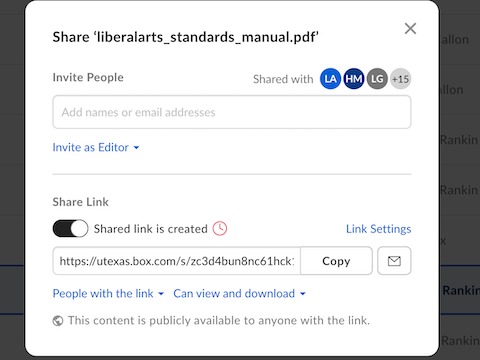
In the Share popup, make sure the "Shared link is created" toggle is on. Shared files in Box are shared for a specific period of time by default. To remove the time limit, click the "Link Settings" link near the bottom right.
In the Link Expiration section uncheck the "Disable Share Link on" checkbox and click Save.
On the share popup you should no longer see the red clock icon next to the "Shared link is created" toggle. Click the "Copy" button and paste the shared link in the text block or button settings in Pages.